


Silence Teams Phone new calls during an active call or meeting
Teams Phone provides multiple ways to avoid the distraction of a call ringing on your device while you are on another Teams call or in a meeting. Adjust your settings based on your needs.
Option 1: Edit your Teams Notifications
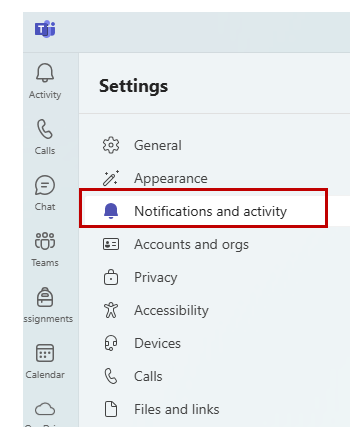
1. Navigate to Settings in Teams.
2. Select Notifications and activity.
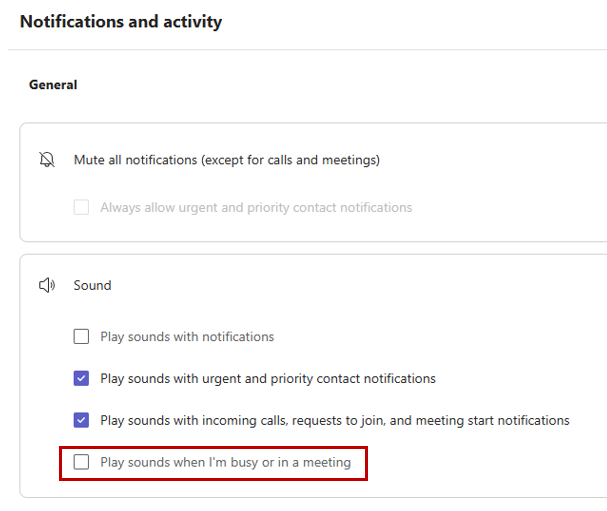
3. Under Sound, make sure Play sounds when I'm busy or in a meeting is NOT selected.
Option 2: Adjust settings under Call handling and forwarding
1. In Teams, under Settings, select Calls.
2. Under Call handling and forwarding, you have the option to Forward all calls. All calls will go directly to voicemail, and the additional options under call handling will no longer appear.
3. If Forward all calls is not turned on, you have additional options to customize. To not have a call ring while you are on another call, click the drop-down menu under When you're in a call and receive another call.
4. Select Redirect as if call is unanswered. This option will redirect the new call to voicemail or follow the If unanswered setting you have previously configured.